Quickly copy and paste matched data
We've made it faster for our users to copy and paste matched data from an evaluation. Hover over the Name, Address, Email, Phone, Birth Date or SSN and copy to clipboard.

We've made it faster for our users to copy and paste matched data from an evaluation. Hover over the Name, Address, Email, Phone, Birth Date or SSN and copy to clipboard.

Quickly assign an existing role permission to a new agent upon creation.

You can always modify role permissions post creation by clicking into a specific agent as previously supported.

The Group Detail view has been updated to be consistent with that of the current Group Review view. The difference between the two views is the ability to take action and review when accessing a group through the Review Queue.
Before Group Detail View

After Group Detail View

Determine when core PII was used in the evaluation but not verified or unverified by a third party service. Previously, we only showed a default string that represented none were matched. Now, you’ll see each section split out within matched data.
Before

After

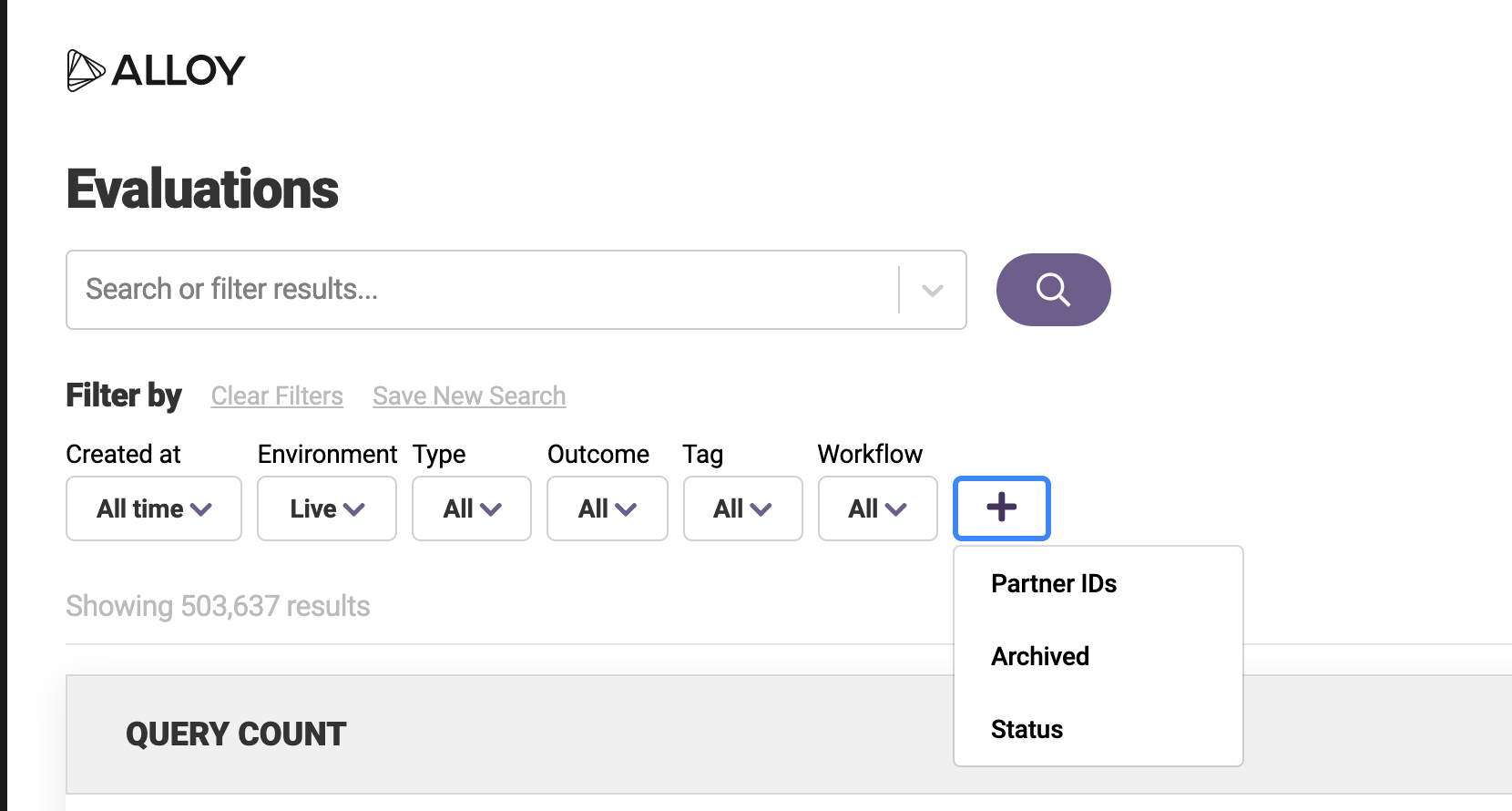
Make it easy for your users to access the information that is most relevant to them. Upon load, they will simply land on Evaluations, Entities and Review Queue with a saved search preselected for their role.

Create a Public Saved Search To create a saved search that can be assigned to a role, you must first filter or search within Evaluations, Entities and Review Queue. Next, click on Save New Search, a modal will appear with the option to check Public View. Once checked, make sure to Save.

Assign Public Saved Searches to a Role Account admins can then assign these public saved searches for each role permission within Roles Settings.

Once you've created a public saved search and assigned it to a role, your users will now land on their respective default saved search.